> For the complete documentation index, see [llms.txt](https://galmis.gitbook.io/serializer-product-tracking/llms.txt). Markdown versions of documentation pages are available by appending `.md` to page URLs; this page is available as [Markdown](https://galmis.gitbook.io/serializer-product-tracking/getting-started/item-management/manage-inventory-items.md).
# Manage inventory items
## Overview
Inventory [items](/serializer-product-tracking/troubleshooting/faqs/whats-an-item-in-serializer.md) allow you to track unique information (serial numbers and [custom fields](/serializer-product-tracking/getting-started/setup-and-configuration/settings/track-custom-item-information.md)) for individual product units on hand. This feature is only available when using the "Inventory and sold items" tracking method.
***
## Add new inventory items
### Prerequisites
Before adding inventory items to Serializer, ensure:
* **Tracking method**: You're using "[Inventory and sold items](/serializer-product-tracking/getting-started/setup-and-configuration/settings/item-tracking-methods.md#track-inventory-and-sold-items)" mode in app settings
* **Tracking preferences**: Product variants have [tracking preferences](/serializer-product-tracking/getting-started/setup-and-configuration/product-tracking-preferences.md) configured
* **Shopify inventory**: Variants have "**Inventory tracked**" enabled in Shopify
* **Quantity on hand**: Variants have available inventory (quantity > 0), and the total quantity of variant inventory items in Serializer is less than the available inventory.
{% hint style="info" %}
Adding inventory items creates records for individual units that you can assign to orders or POS cart, without affecting your Shopify inventory quantities.
{% endhint %}
### Add items manually
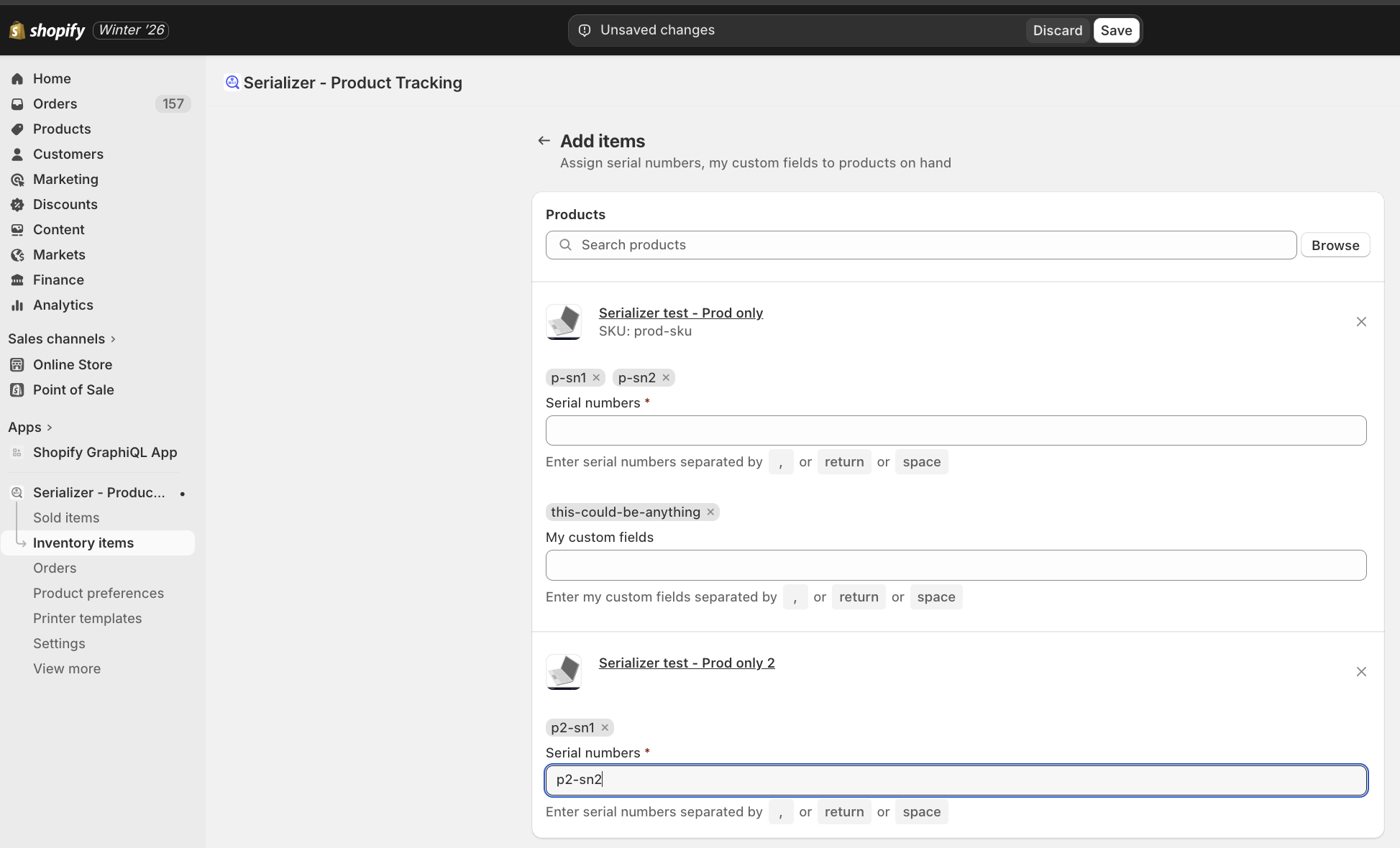
Add items one by one or in bulk by selecting up to 250 product variants and entering values for each tracked field.
**How this helps you:**
* **Speed up data entry**: Enter multiple serial numbers at once using a tag interface - no need to click "add" repeatedly for each item
* **Eliminate manual typing errors**: Use your mobile device's camera or a handheld scanner in HID (keyboard) mode to scan barcodes instead of typing long values by hand
* **Catch mistakes before they're saved**: Real-time validation alerts you to duplicates and missing required fields (as configured in the app settings) as you type
**Get started:** [Add items manually](/serializer-product-tracking/getting-started/item-management/manage-inventory-items/add-items-individually.md)
***
### Import from CSV
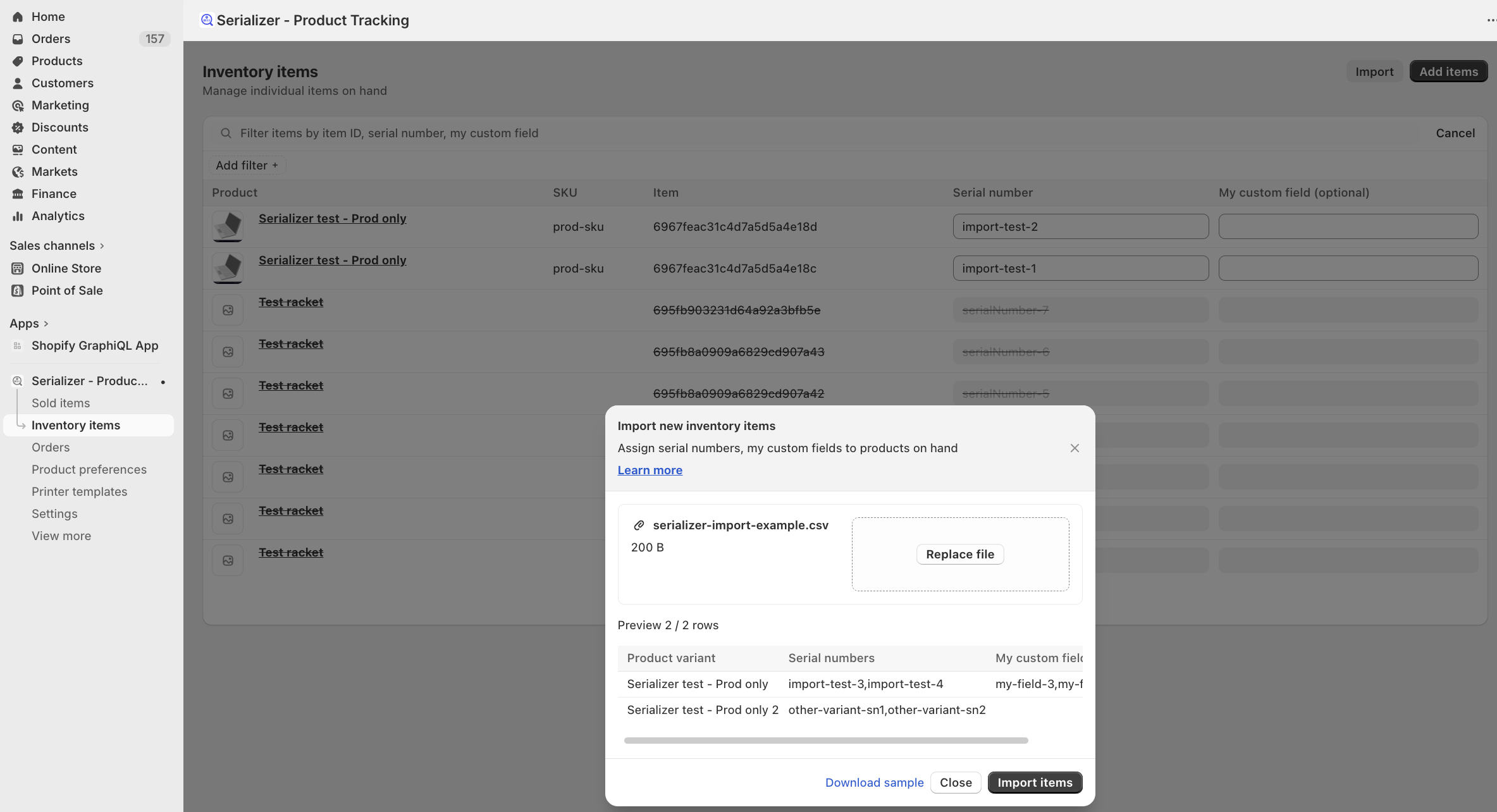
Upload a CSV file to import inventory items in bulk. The app validates your file format and processes imports in the background.
**How this helps you:**
* **Start with confidence**: Download a sample CSV file so you know exactly what format to use before creating your import file
* **Catch formatting and data-quality issues early**: Data validation with detailed error reporting helps you fix problems before any updates occur
* **Keep working while imports run**: Large files process in the background so you're not stuck waiting - continue with other tasks
**Get started:** [Import items from CSV](/serializer-product-tracking/getting-started/item-management/manage-inventory-items/import-items-from-csv.md)
***
## Manage existing inventory items
### View and search items
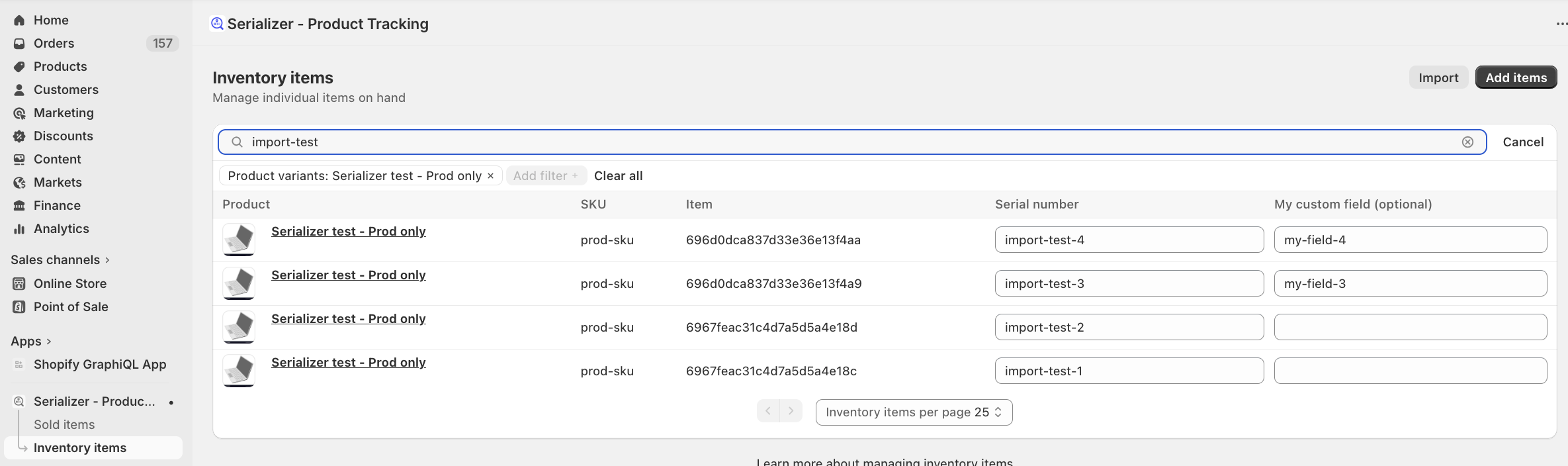
Browse all inventory items in a searchable, filterable table. Filter by product variant or search by item ID, serial number, or any custom searchable field.
**How this helps you:**
* **Handle large inventories without slowdown**: View 10-100 items per page to keep the interface fast and responsive no matter how many items you have
* **Find what you need in seconds**: Full-text search across all item fields means you can locate any serial number or warranty detail instantly when a customer calls
* **Zero in on specific products**: Filter by product variants to quickly narrow down your search when you know which product you're looking for
* **See only what matters to you**: Customize which columns are visible so you're not overwhelmed by fields you don't need right now
* **Identify items at a glance**: Product thumbnails and details help you visually confirm you've found the right item
***
### Edit items
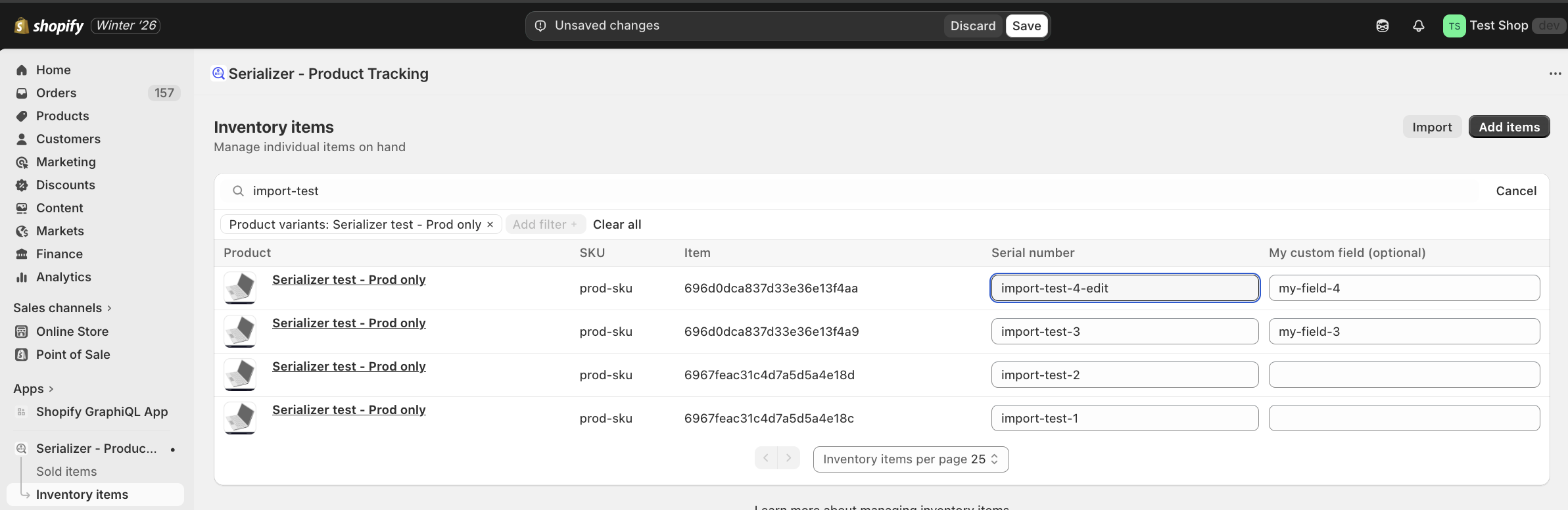
Update inventory item information directly in the table with inline editing. Changes are validated in real-time before saving.
**How this helps you:**
* **Make quick corrections without leaving the page**: Edit item information right in the table - no need to open separate forms or navigate away
* **Prevent duplicate entries**: Automatic duplicate detection per variant stops you from accidentally creating items with the same serial number
* **Never miss required information**: Mandatory field validation ensures critical data is complete before saving
* **Save time with bulk edits**: Make changes to multiple items and save them all at once instead of one-by-one
* **Edit without fear**: Clear save/discard controls mean you can experiment with changes and easily undo them if something doesn't look right
***
## Next steps
After adding inventory items, you can assign them to [orders](/serializer-product-tracking/getting-started/item-management/manage-sold-items.md) or [POS cart](/serializer-product-tracking/getting-started/item-management/manage-items-in-pos-cart.md).