
Manage sold items in the embedded app
Select order(s) to manage
There are multiple ways to navigate to the Manage order items page.
Shopify admin orders page
Select the orders you wish to manage.
Click the three dots icon "..." and then "Manage items in Serializer".

Shopify admin order details page
Go to an order page in admin
Click More actions
Click Manage items in Serializer

If you wish to stay in the current context, learn how to manage items on the admin order page.
Orders page in the embedded app
Click on the order row in the table. Alternatively, select multiple orders and click "Manage items".

Making changes
The steps differ, based on the item tracking method.
Bulk editor
Enter values separated by commas, spaces, or new lines.

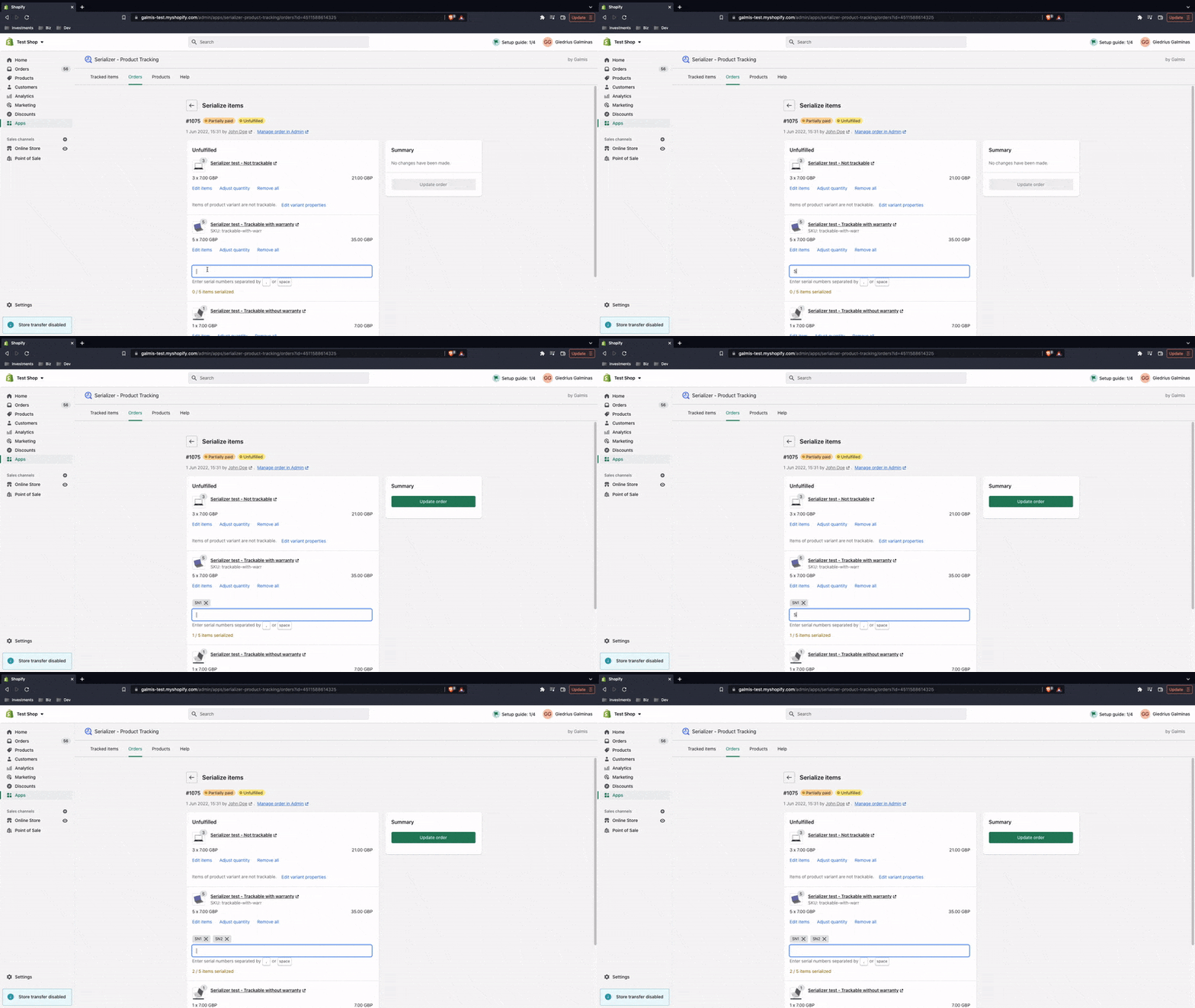
Important: after entering a value into an input field, press space, comma or Enter to capture it. View captured value tags above the input field.
Paste values
Suppose you already track serial numbers of the sold items (e.g. during the order fulfilment process) in electronic files or external software. In that case, you can copy the serial numbers from outside the app and paste them into the serial numbers' input field for each line item.

Scan values
Alternatively, you can scan serial numbers or other details via the Shopify mobile admin and POS apps using the device's camera
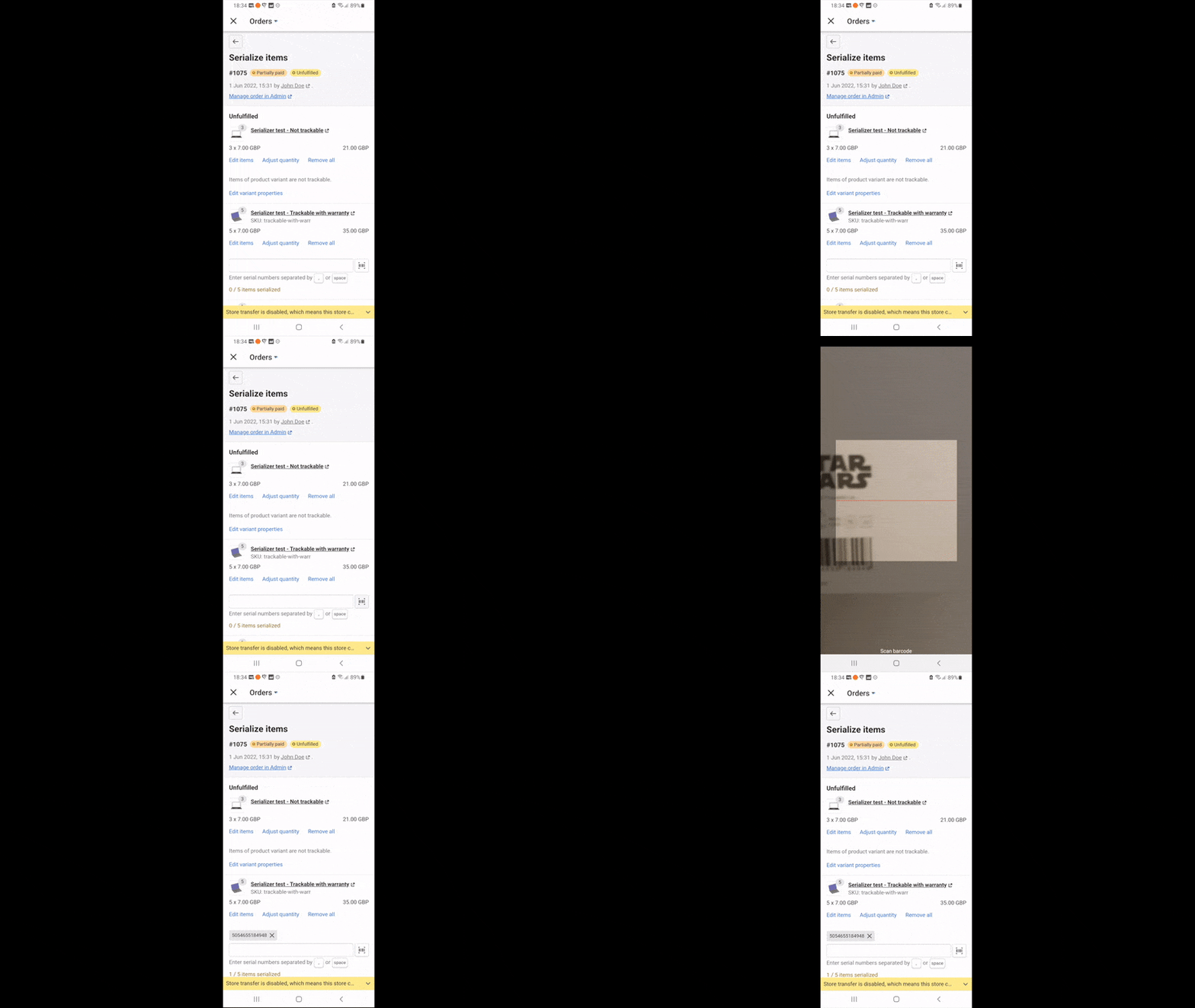
or a barcode scanner in HID (keyboard) mode.
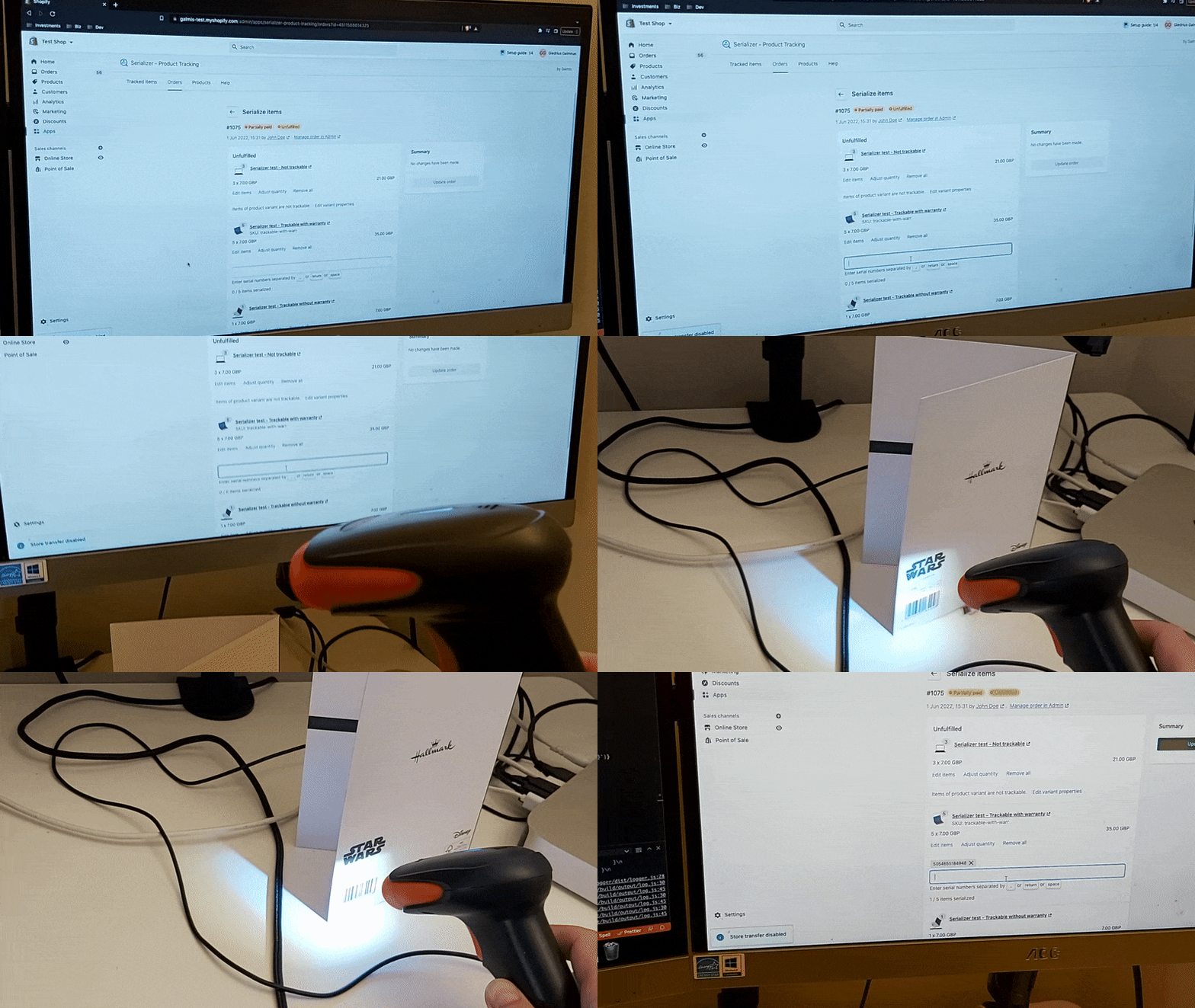
For barcode scanners, I recommend setting up a carriage return, new line, comma or space as a barcode terminator/suffix to automatically add a serial number separator. If such a setting isn't set, you must manually type one of the separator characters after each scanned serial number.
When a variant has multiple tracked fields, values are matched by position. For example, if you enter three serial numbers and three custom field values, the first serial number and first custom field value are assigned to Item 1, the second serial number and second custom field value to Item 2, and so on.
Individual entry
Click Edit items and fill in the input fields for each item.

Click Done to capture changes locally.
Assign inventory items to order line(s). The serial number tags of the selected items appear above the Items field.

To filter items, enter a serial number or searchable custom field value.

In case there are any inaccuracies in the inventory item(s), click Edit items and edit the values.

Click Done to capture changes locally.
Save changes
Once you're happy with the changes, click Update order.
Your entered information will be saved in Serializer's database and Shopify's order metafield under the namespace "serializer" and key "properties".
Please do not add custom metafield definitions, or delete or edit existing metafields under the "serializer" namespace, as the app will not function as intended. Learn more about metafields.
Next steps
View all sold items on the centralized Sold items page in the embedded app.
Last updated